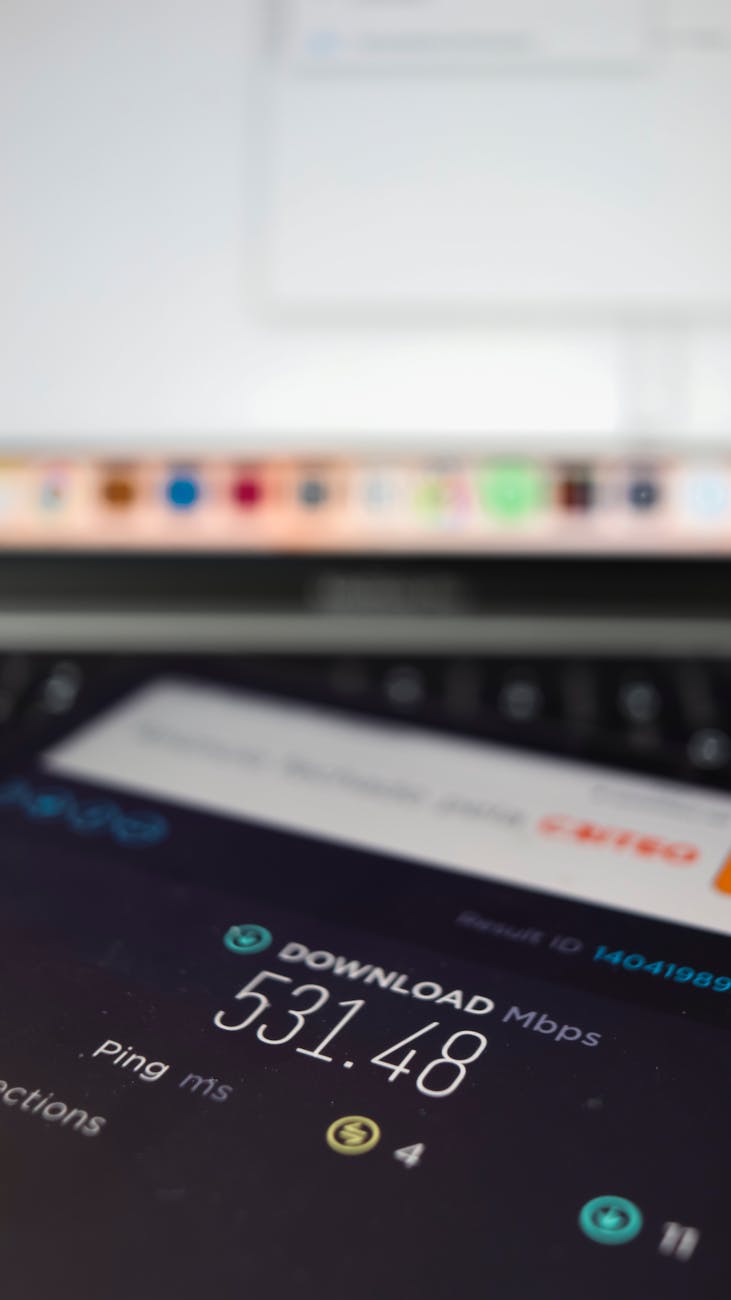
If you plan to take the GRE General Test at home, a reliable internet connection is essential. This article explains the internet-related technical requirements, recommended connection specs, how to check your network before test day, common problems and fixes, and practical alternatives if your home connection is not dependable. Confirm the final technical requirements with ETS before your appointment because ETS controls the official rules and the online system check.
Quick answer
For the GRE at home you must use a stable, high-quality internet connection that passes ETS’s system check. For the smoothest experience, use a wired Ethernet connection when possible, disable VPNs and proxies, and make sure background apps and other devices are not consuming bandwidth during the test. Run the ETS system check well before your test time to confirm your setup.
Why internet quality matters for the GRE at home
The GRE at home is proctored remotely. Proctors monitor video, audio, and screen signals in real time. Interruptions in those streams can cause the proctoring platform to disconnect, may interrupt your test timer, and in some cases could require you to reschedule or stop the test. Stable upload and download capacity, low latency, and a consistent connection are therefore critical to avoid interruptions and to complete the exam without complications.
Official vs. recommended requirements
ETS provides the official technical checklist and a system check tool you must run prior to testing. The official checklist confirms whether your system and network meet their minimums. Because ETS may update details, use their official pages for final verification. Below are practical, commonly used recommendations that help you meet ETS’s requirements and reduce the risk of connectivity issues.
Practical internet specifications and recommendations
The exact numbers ETS enforces can change, but use these practical guidelines when preparing.
- Connection type: Prefer a wired Ethernet connection. Wired links are far more stable than Wi-Fi. If you must use Wi-Fi, use a private 5 GHz band if available and position the device close to the router.
- Recommended speeds: Aim for at least 5 to 10 Mbps download and 2 to 5 Mbps upload for a reliable remote proctoring experience. Higher speeds reduce the chance of video or audio problems.
- Minimum acceptable speed: Connections slower than about 2 Mbps upload or 3 Mbps download are at higher risk for problems. A connection that meets ETS’s system check is what matters most.
- Latency: Lower latency improves responsiveness. A round-trip latency under 100 ms is preferable. High latency can cause video or audio lag and disconnections.
- No VPNs or proxies: Do not use virtual private networks, proxy servers, or remote-desktop software during the system check or exam. These can block the proctoring software or trigger security flags.
- Firewall and security software: Ensure firewall or antivirus settings do not block camera, microphone, or the proctoring application. Temporarily allow or whitelist the test software if needed for the system check.
- Network ports: The test platform uses standard web protocols. If you are on a restrictive network, open connections for web traffic (HTTPS) and allow camera/microphone access. If you are on a managed network, speak with the network administrator before testing.
System checks and pretest steps
Run the official ETS system check well in advance. In addition to the ETS check, perform these steps to reduce risk.
1. Run an internet speed test
- Use a reputable service such as speedtest.net or fast.com. Record upload, download, and ping values.
- Run tests at the same time of day you will take the test to simulate real conditions.
2. Use the ETS system check
- Log in to your ETS account and run the GRE at-home system check. This test validates browser or secure-app access, camera, microphone, and connection quality according to ETS requirements.
- If the check fails, follow the instructions and re-run it after making changes.
3. Reduce competing bandwidth use
- Disconnect other devices from the network, pause cloud backups, and stop large downloads or streaming on the network during the test.
- Temporarily pause auto-updates on your operating system and applications.
4. Prepare hardware and software
- Use a desktop or laptop that meets ETS’s device requirements; tablets and phones are typically not allowed. Check the official device list.
- Update your operating system and browser in advance, and restart your computer the day of the test.
- Allow camera and microphone permissions for the test application or browser.
Network setup tips that reduce risk
- Prefer Ethernet. Plug directly into the router or modem with an Ethernet cable when possible.
- If using Wi-Fi: Choose the 5 GHz band, minimize distance and obstacles between device and router, and avoid crowded channels.
- Prioritize traffic. If your router supports Quality of Service settings, prioritize video or conferencing traffic.
- Restart equipment the day of the test: reboot the modem, router, and testing computer several hours before the appointment to clear potential issues.
- Avoid public Wi-Fi. Public or shared Wi-Fi is riskier and often blocked by security software. If you must use a public network, test it thoroughly ahead of time and confirm it allows the proctoring connection.
Common problems and how to fix them
Intermittent disconnects or temporary video/audio freeze
- Switch to a wired Ethernet connection if possible.
- Pause background uploads and downloads, including cloud sync apps.
- Move closer to your router or use a travel router to improve signal stability.
Test platform reports camera or microphone issues
- Check operating system privacy settings to ensure the browser or test app can access the camera and microphone.
- Try an external USB webcam or headset microphone if the built-in devices fail the check.
Proctoring platform blocks connection due to VPN or proxy
- Turn off VPNs, proxy servers, and virtual private networking services before the system check and test.
- If your home ISP routes through a proxy by default, contact the ISP or ETS for guidance prior to test day.
What to do if your connection fails during the test
If you lose connection during the test, act quickly and follow the proctoring instructions shown on-screen or given by the remote proctor. Common steps include:
- Attempt to reconnect immediately. Rejoin the test as instructed by the platform.
- Document the failure. Take screenshots of error messages if possible and note the exact time and length of the interruption.
- Contact ETS or follow the in-platform instructions to report the incident. ETS provides guidance on how interruptions are handled, and proctors will record any disruptions.
Policies differ between testing providers and between short interruptions and extended outages. Because outcomes can vary, keep evidence and verify the official ETS guidance about score reporting, rescheduling, and refunds.
Alternatives if your home internet is unreliable
If your home network is not dependable, consider these options.
- Use another private location: a friend or family member’s home with a stable connection, a private office, or an approved quiet room with a reliable wired connection.
- Reserve a test center: If available in your area, an in-person test center avoids home network issues altogether.
- Schedule at an off-peak time: testing early in the morning or late at night may reduce local network congestion.
- Temporary internet upgrades: speak with your ISP about a short-term speed boost or a temporary dedicated line if you expect network problems.
International students and variable internet infrastructure
Internet conditions vary by country and region. If you live where residential internet speeds are typically lower or less stable, plan extra preparation time. Run the ETS system check from your test location well before the scheduled appointment. If a reliable home connection is not possible, explore the alternatives above, particularly in-person centers or a trusted private location with a wired connection.
Pre-test checklist (copyable)
- Run the ETS GRE at-home system check at least 48 hours before the test.
- Run a speed test at the intended test time and record the results.
- Preferably connect via Ethernet. If using Wi-Fi, choose 5 GHz and sit close to the router.
- Disable VPNs, proxies, and remote-desktop tools.
- Pause cloud backup and large downloads. Disconnect other devices from the network.
- Allow camera and microphone permissions for the test app.
- Restart your computer, modem, and router within a few hours of the test.
- Have a backup plan: another location with a reliable wired connection or plan to use a test center.
Frequently asked questions
Does ETS publish a specific minimum internet speed I must meet?
ETS’s system check is the definitive test of whether your connection meets their requirements. ETS often describes general technical requirements, but the system check will indicate if your setup is acceptable for the scheduled test. Use the ETS pages for the latest, authoritative guidance.
Can I use a mobile hotspot for the GRE at home?
Mobile hotspots can work if they provide consistent upload and download performance. However, mobile connections are more susceptible to variability and signal loss. Use a hotspot only after thorough testing and as a last resort. Confirm with ETS and run the official system check using the hotspot well before test day.
Will a temporary disconnect automatically cancel my test?
Not always. Many proctoring systems let you reconnect after short interruptions. Extended disconnections may require contacting ETS and could affect your ability to finish the test. Keep documentation and follow the proctor’s instructions immediately.
Who do I contact if I have a network problem the day of my test?
Follow the instructions shown in the proctoring interface and contact ETS if the issue is not resolvable through the platform. ETS’s website and your registration confirmation include contact details for technical support.
Final thoughts
A stable, relatively fast internet connection is a key component of taking the GRE at home. Use the ETS system check, prefer a wired connection, reduce competing bandwidth use, and run speed and camera tests at the same time you will test. If your connection is unreliable, arrange an alternate location or consider an in-person test center. Always verify any final technical or policy details with ETS before your test appointment.